Enabling the Site Ribbon and Referral Modal
How to activate the customer referral site elements within your Shopify theme.
Overview
Lantern uses two main elements to notify a referred customer: a Site Ribbon to initially catch their eye and a Referral Modal to provide the offer details and encourage sign up. Both of these elements are optional, and must be enabled through the Shopify Theme Customizer before they will display on your storefront.
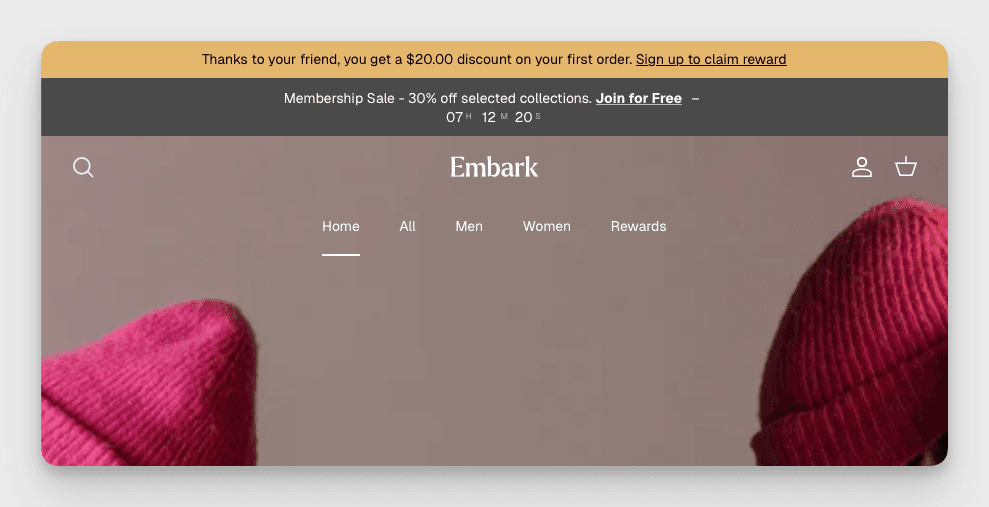
The Site Ribbon is a small banner positioned at the top of your store by default, or in a placement of your choosing. It appears only when a customer has clicked a referral link and is designed to clearly indicate that a special offer is active.
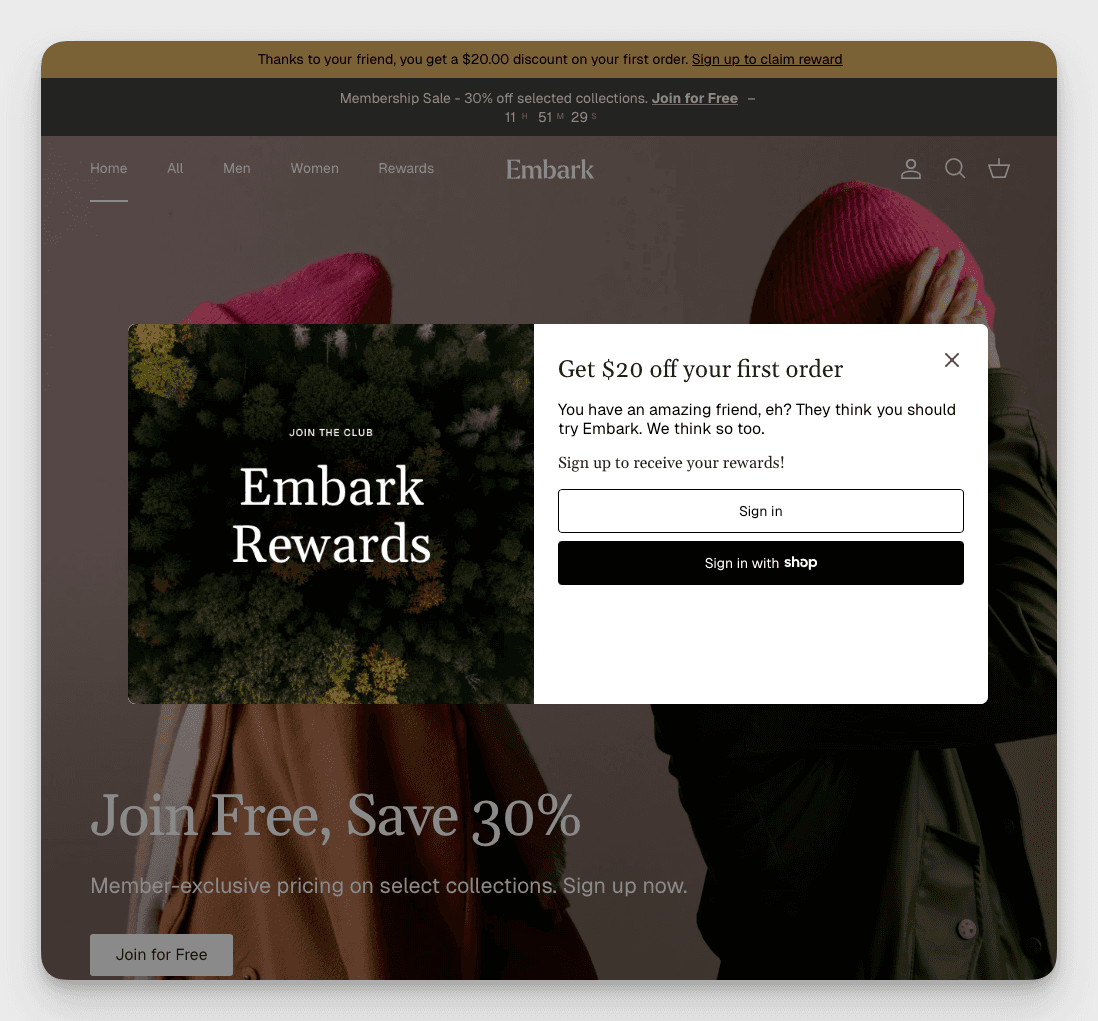
The Referral Modal is a larger pop-up window that can be used in conjunction with the Site Ribbon, and can be customized based on your referral program and needs.
Step 1: Navigate to the Lantern App Embed settings
From your Shopify Admin, go to Online Store > Themes.
Click the Customize button next to the theme you want to edit.
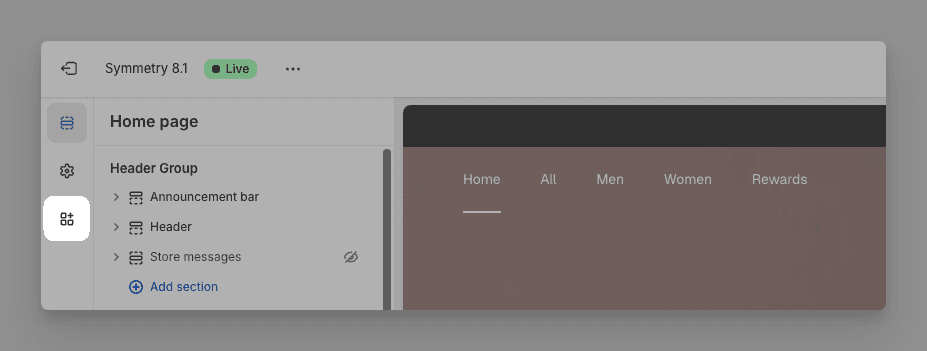
On the left side of your screen, click the App Embeds icon shown in the screenshot below to open the interface.
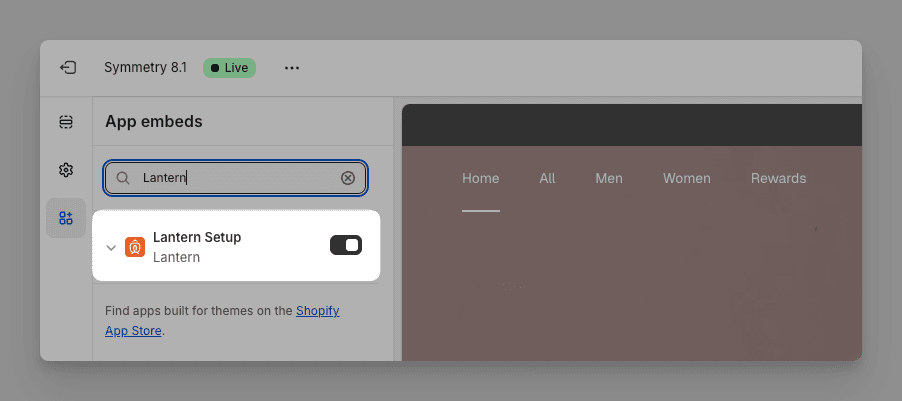
Ensure the Lantern Setup app embed is enabled, and then expand it to view the options available. If you don't see it in the list, try searching for "Lantern" in the app embeds search box.
Step 2: Enabling the Site Ribbon
Toggle the Site Ribbon as seen in the screenshot below.
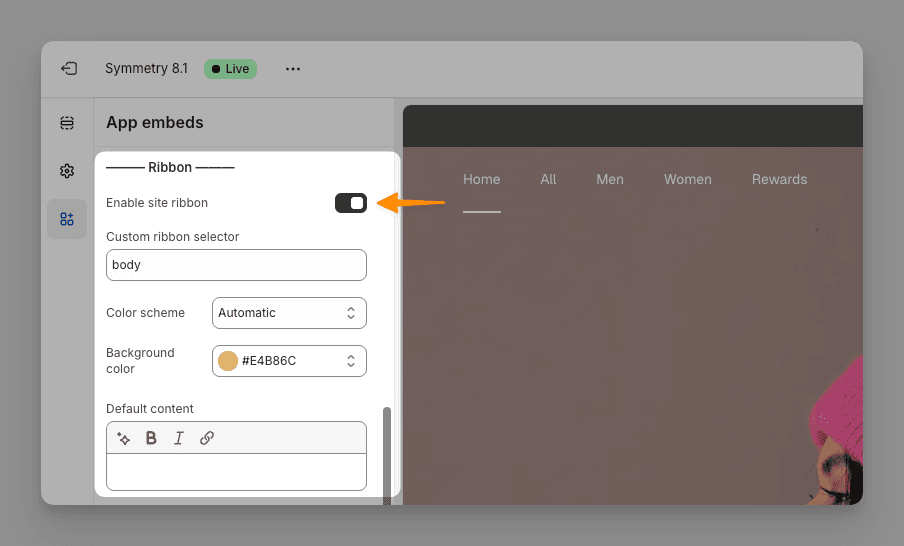
Use the Custom Ribbon Selector to reposition the ribbon below a different site element based on the element's class name.
Select the Color Scheme to adjust the ribbon's text color.
Adjust the ribbon's Background Color.
Optionally edit the Default Content of the message displayed in the ribbon that your customers will see. By default, Lantern automatically uses verbiage based on the setup details of your referral program.
Step 3: Enabling the Referral Modal
Important note:
Toggle the Show Referral Message and Show Referral Modal as seen in the screenshot below.
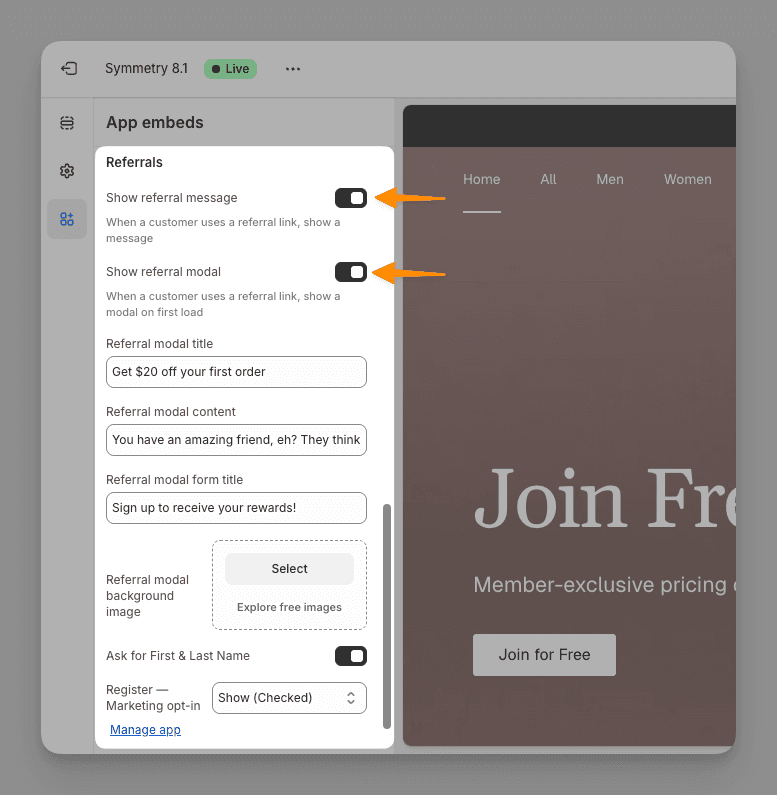
Set the title of your modal using the Referral Modal Title field.
Set the body text of your modal using the Referral Modal Content field.
Optionally set a Background Image for your modal to better reflect your brand.
Toggle the setting to capture the Customer's First & Last Name during the sign-up process.
Optionally display a marketing opt-in checkbox during sign-up, which can be pre-checked or unchecked. This is useful for marketing campaigns.